Linear
The Linear integration connects a Linear workspace to your instance. Issues start workflows, the agent reads and answers on them, moves them between statuses, and Knecht reports the finished pull request back on the issue.
Setup
You need a Linear workspace and an account Knecht acts as. A dedicated account named "Knecht" is worth the extra seat: comments show up under its name, "assign it to Knecht" becomes a normal assignment in Linear, and the account's team memberships limit what Knecht can see. Creating the webhook in step three needs workspace admin rights, once.
Create a Personal API Key
Sign in to Linear as the account Knecht should use and open Settings, "Security & access". Under "Personal API keys", create a new key. Give it a name such as "Knecht" and fill in the form:
- Permissions. "Full access", or under "Only select permissions" at least Read and Write. Knecht reads issues and comments, writes comments, and changes labels and statuses.
- Team access. "All teams you have access to", or under "Only select teams" the teams you want to link to projects.
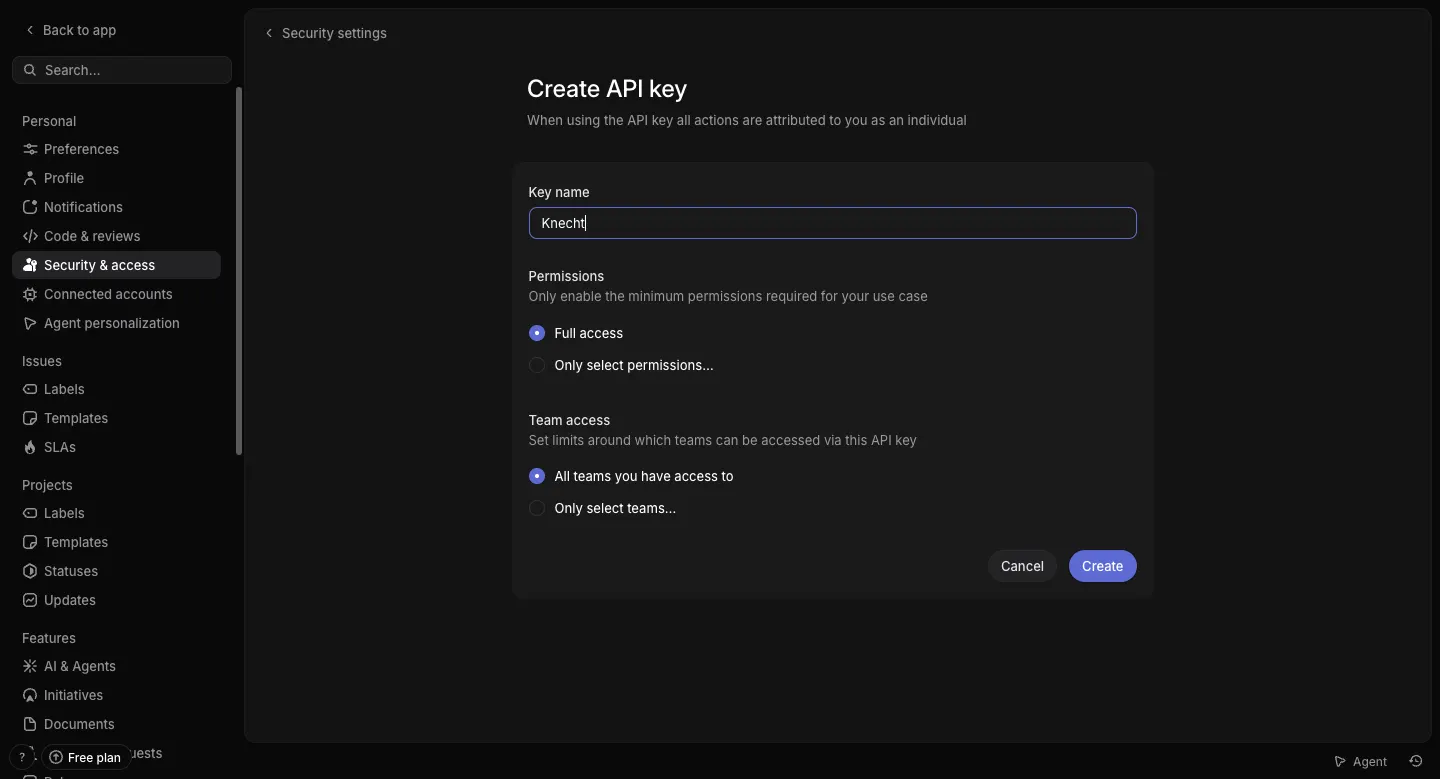
"Create" shows the key. Copy it, it starts with lin_api_ and is shown only once. Everything Knecht does with the key is attributed to this account.
Connect the Account
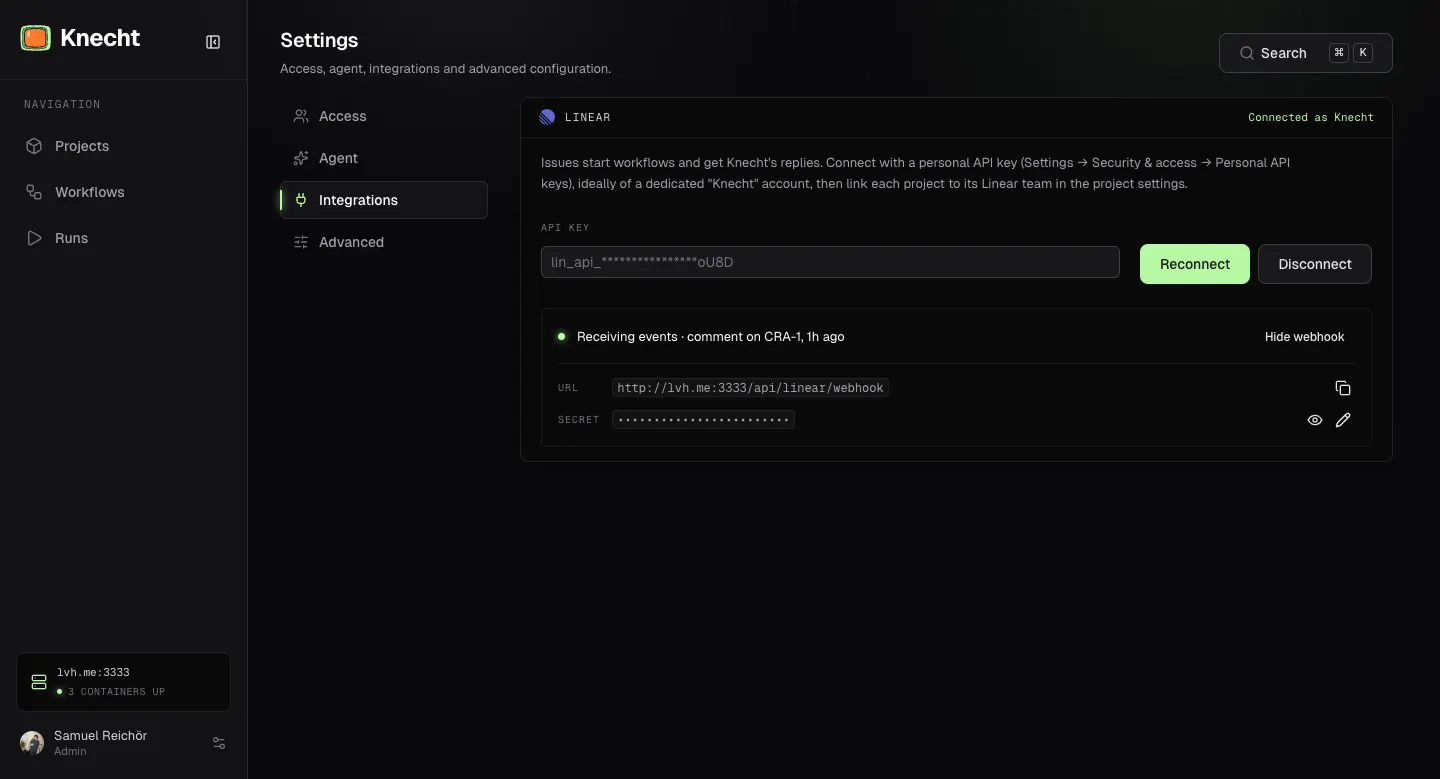
In your instance, open Settings, Integrations. The Linear panel has one field, "API key", for the key from step one.
"Connect" checks the key against Linear before anything is stored and shows "Connected as" with the account's name on success. The key is stored encrypted and not shown again. "Reconnect" replaces the key later, "Disconnect" removes the connection.
Create the Webhook in Linear
Linear does not call Knecht until you tell it to. After connecting, the panel shows the webhook URL with a copy button. "Set up in Linear" opens the API settings of your workspace. By hand it is Settings, then "API" under Administration, then "Webhooks".
Fill in the form:
- Label. Anything, for example "Knecht".
- URL. The webhook URL from the panel, it ends in
/api/linear/webhook. - Data change events. Tick "Issues" and "Comments". Everything else stays empty.
- Other events. Leave "Issue SLA" unticked.
- Team selection. "All public teams", or the one team you link. It cannot be changed after creation. Knecht drops events of teams that are not linked.
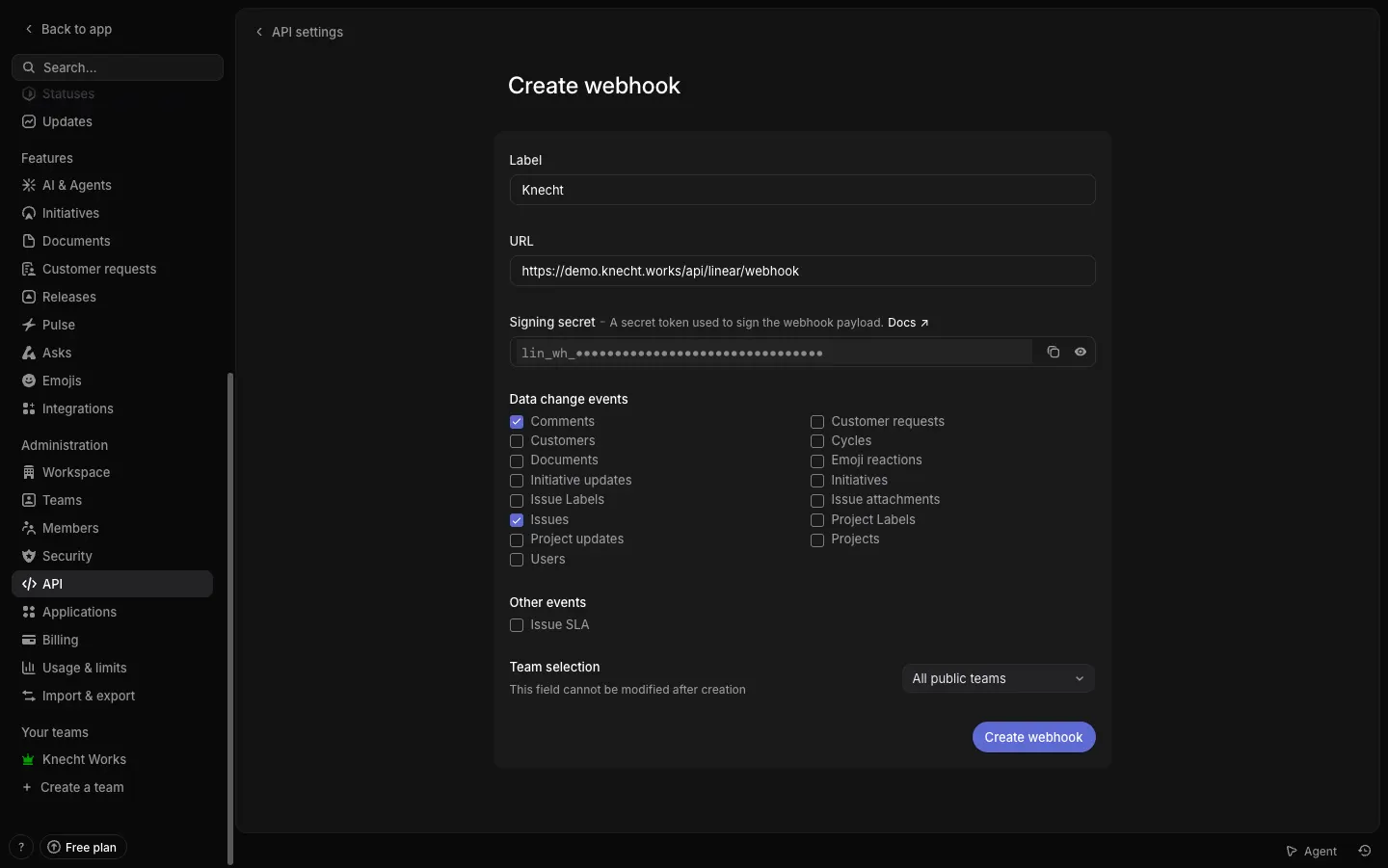
Knecht uses the issue events create, update, and remove, and the comment event create. Updated and removed comments arrive as well and are ignored.
The form already shows the signing secret, it starts with lin_wh_. Copy it, click "Create webhook", paste the secret into the Secret field of the Linear panel in Knecht, and click "Save". Unlike Jira, the secret comes from Linear, not from Knecht. Knecht keeps one signing secret, so use one webhook for all linked teams. The pencil next to the secret replaces it later. The status line switches to "Waiting for Linear".
Link a Project to Its Linear Team
Open the settings of a project in Knecht. The Linear panel has one field, "Linear team", listing the teams the account can access. Pick the one whose issues belong to this repository. One Linear team links to one repository and the other way round. Only linked projects can have Linear triggers.
Check That Events Arrive
Edit any issue of the linked team. The status line in the Linear panel under Settings, Integrations switches to "Receiving events" with the last event and issue identifier. If it does not:
Capabilities
Triggers
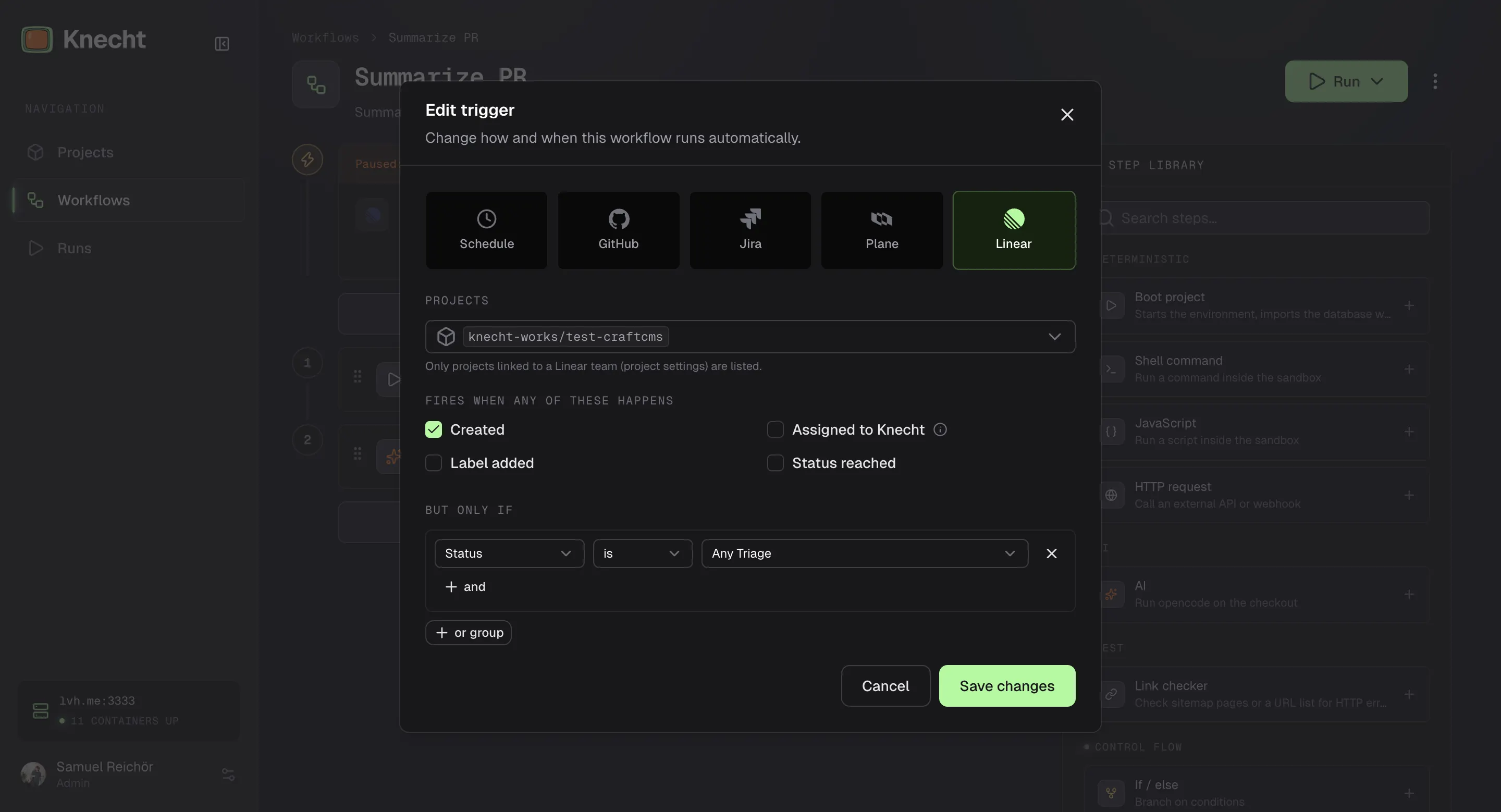
A Linear trigger watches the Linear teams linked to the selected projects and starts one run for the project whose team the issue belongs to. The project field only lists projects that are linked. In the form, "Fires when any of these happens" lists the events and "But only if" the conditions. Any ticked event fires the trigger, and one group of conditions has to hold. How the two sections work in general is on Triggers. What all issue trackers share, such as issues that are created with the label already set, is on Triggers.
Events
Status Reached
The status list has two groups.
- Category. "Any Triage", "Any Backlog", "Any Unstarted", "Any Started", "Any Completed", and "Any Canceled" stand for Linear's six status categories, whatever the statuses of a team are called.
- Exact status. The statuses of the selected teams.
Triggers explains when a category and when an exact status fires, Matching what happens with several projects. If the form warns about a missing status, pick a category, a status all teams share, or create a second trigger.
Conditions
Each condition takes "is" or "is not". Every value is picked from a list and compared exactly, upper and lower case included. The rules are the same for every source, see Matching.
Inputs
The issue fills the run inputs: identifier is the key such as ENG-42, title the title, body the description as Markdown, url the issue link, status the status name, labels the labels, assignee and author the names of the assignee and the creator. event is issue. Pausing, versioning, and shared behavior are on Triggers.
Sessions on Issues
A run started by an issue joins the session of that issue, like a run on a GitHub issue. The session keeps the checkout, the environment, and the agent conversation, so a second trigger on the same issue or a mention continues the work. The session closes when the issue reaches a status in the Completed or Canceled category, is archived, or is deleted, its environment stops once no run needs it any more, and it opens again when the issue is moved back.
The Agent on Issues
When the run's session belongs to an issue, the agent gets four commands inside the environment. The prompt of an AI step only has to name what to do with them.
- Read the issue. Priority, status, creator, assignee, labels, the description, and the last ten comments, live from Linear.
- Reply. Posts a comment on the issue. The agent writes Markdown, which Linear takes as it is, and Knecht appends the preview link and, when one exists, the pull request link.
- Set labels. Adds or removes labels of the team and the workspace. Knecht never creates labels. If a name does not exist, the agent gets the list of existing labels instead.
- Move the issue. Sets the status by name, for example "In Review". Linear has no transition rules, so every status of the team is reachable.
Opening a pull request works through the git steps or the agent's own command, see GitHub.
Mentions
Write a comment on an issue of a linked Linear team, mention the Knecht account the way you mention a colleague, and add the instruction:
@Knecht fix the broken footer link
@knecht typed as plain text works as well. Knecht runs the comment as a follow-up and posts the answer as a comment.
Whoever can comment on the issue can mention Knecht, the Linear workspace is the gate.
The one-time setup, what happens step by step, and what to check when Knecht stays silent is on Mentions.
Examples
The workflows below can be built in the editor or imported from YAML under Workflows, "Import". Triggers are added in the editor after the import. All of them assume the project is linked to its Linear team.
Software Factory
Three workflows that hand an issue from one to the next. The triage checks every new issue, sets the label Bug or Feature, and moves it to "Todo". That move fires the trigger of the workflow whose label condition matches. A bug comes back with a pull request and an issue in review, a feature with a plan that a mention in the comments turns into a pull request.
All of it runs in the session of the issue. The triage boots the site once and every later run finds it running, so only the triage has a boot step. The prompts do not repeat title or description, because the agent reads the issue of its session itself.
Bug and Feature exist in the team or the workspace first. Knecht only applies labels that exist, and a trigger only offers labels that exist.Triage
Bug Fix
Plan Feature
When the team agrees with the plan, a comment that mentions the Knecht account, such as "implement it and open a PR", is enough. Knecht continues in the same session and answers with the pull request.
Urgent Bugs to Knecht
No triage: the team assigns an issue to the Knecht account like to any colleague, and Knecht implements it. The conditions keep it to urgent bugs, everything else assigned to Knecht stays untouched. This workflow stands on its own, so it boots the site itself.
Estimate the Triage Inbox
With Triage switched on for a team, issues from other tools and from people outside the team land in the Triage status first. This workflow gives each of them an estimate and moves it to "Backlog". A new issue is created in Triage and does not move there, so the trigger fires on "Created" with a condition on the status instead of on "Status reached". The agent reads the issue, looks up the code it touches, and comments how big the work is and why. An estimate needs the code, not the running site, so there is no boot step.