Projects
A project is a GitHub repository connected to Knecht, together with what it needs to boot: environment variables, a database dump, and a few settings. This page covers what kind of projects work, how to add one, and what you can do with it afterward.
Supported Stacks
Knecht boots projects with DDEV. These are tested on real projects and run in our test suite:
Any other repository is expected to work too. A .ddev/config.yaml boots from that file as it is, with the framework, PHP version, and database read straight from it.
Without one, Knecht generates an environment from:
- The PHP version from
composer.json. - The Node version from
.nvmrc,engines.node, a mise config, or.tool-versions. - The package manager from the lockfile.
Adding a Project
"New project" on the projects page opens a short guided setup. The project exists after the first step, everything after that is optional and can be changed later in the project settings.
Connect the Repository
Pick a repository from those the GitHub App is installed on, and a branch. It defaults to the repository's default branch. Runs check out this branch and open pull requests against it. The branch is fixed per project, another branch can be chosen per run.
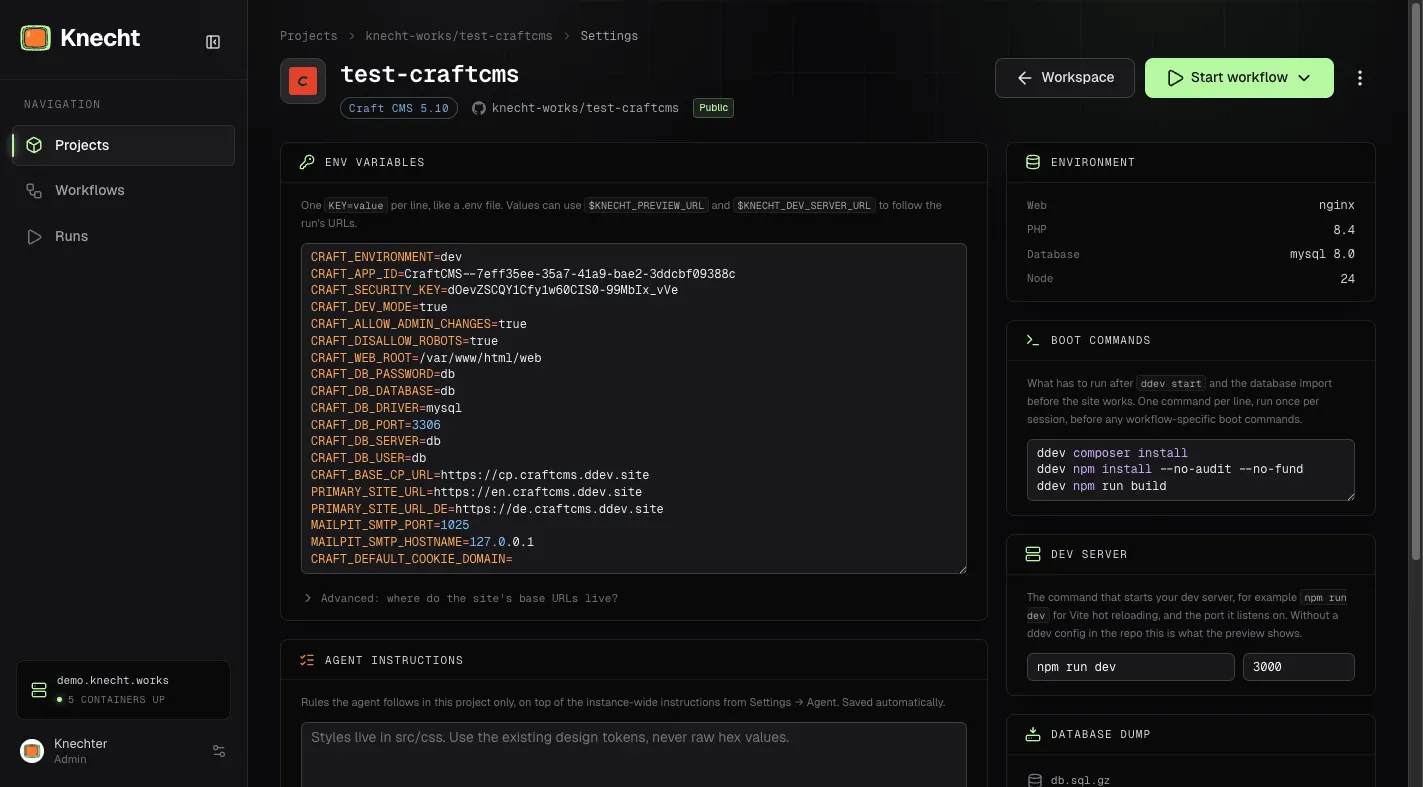
Set Environment Variables
Paste the project's .env, one KEY=value per line, or skip and add them later.
$KNECHT_PREVIEW_URL and $KNECHT_DEV_SERVER_URL. Knecht fills them per run, so a variable such as APP_URL=$KNECHT_PREVIEW_URL always points at the current preview.Import a Database
Upload a dump as .sql, .gz, .zip, .bz2, .xz, .tar, or .mysql. It is imported into the environment on the first boot and stays there for later runs. Without a dump, the project boots with an empty database.
Boot and Preview
The last step offers "Open project" and, as long as the bundled boot-and-preview workflow exists, "Boot & preview". Boot runs that workflow right away: it imports the database, builds the project, and opens a preview so you can confirm the project comes up. Open project skips that and shows the project page, where the same can be started later.
Working with a Project
Everything from the guided setup lives in the project settings and can be changed there. "Settings" in the top right of the project page opens them. Beyond the setup values, the settings hold the Mentions panel with the starter workflow, a link panel for each connected issue tracker, and "Persistent folders" for files that should survive across runs.