Triggers
A trigger starts a workflow without anyone pressing "Run". It sits at the head of the workflow in the editor, targets one or more projects, and starts a run each time it fires. A workflow can have any number of triggers, also several of the same kind. Starting a workflow by hand needs no trigger, see Testing before You Activate.
Trigger Types
This table is the list of sources. Each one has its own page with its events, conditions, and setup, and everything on this page applies to all of them.
GitHub works on every instance. An issue tracker has to be connected first, the Setup section of its page walks through it. Until then, the dialog shows a hint with the way to Settings, Integrations instead of the form. All sources except the schedule arrive through webhooks, so they need an instance that is reachable from the internet.
Adding a Trigger
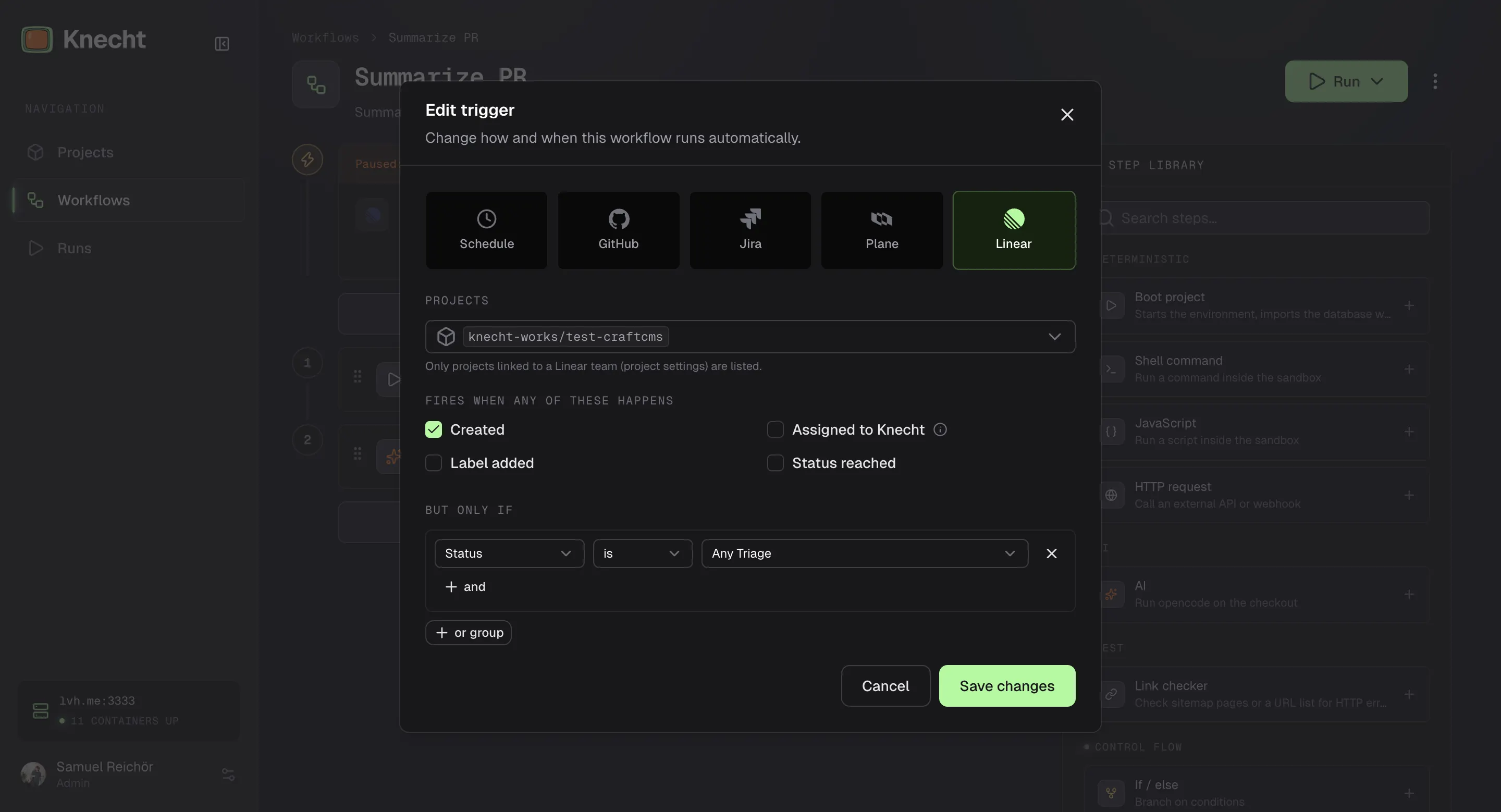
"Add trigger" below the triggers of a workflow opens the dialog. Pick the source, one or more projects, and what the source should react to. For an issue tracker, only projects that are linked to their counterpart in the tool are listed. The link is set in the project settings.
Once saved, the trigger appears as a row at the head of the workflow. The row names the source and reads like a sentence, for example "on opened, ready for review, pushed" and below it "if base branch main and author not renovate[bot]". The projects stand as chips on the right. A click on the row opens the dialog again. The switch on the row pauses that one trigger, the menu next to it deletes it.
Events and Conditions
All triggers except the schedule share one form with two sections.
- Fires when any of these happens. The events. Any ticked event fires the trigger. Some take values, such as the labels of "Label added". An event with several values fires on any of them.
- But only if. The conditions. Each one names a field, "is" or "is not", and one or more values. "is" holds when the object has one of the values, "is not" when it has none of them.
"Add condition" starts the first group. "and" adds a condition to a group, and every condition of a group has to hold. "or group" adds another group, and the trigger fires when one of the groups holds. A pull request trigger with the events "Opened" and "Label added", one group "base branch is main and author is not renovate[bot]", and a second group "label is urgent" fires on either event for pull requests against main that the bot did not open, and for every pull request labeled urgent. Which events and fields a source has is listed on its page, see Trigger Types.
Matching
The values of events and conditions follow the same rules in every source.
- Picked from the tool. Labels, statuses, issue types, priorities, and the draft state of a pull request are picked from a list, read live from the tool. They are compared exactly, and a value that is not in the list cannot be typed.
- Patterns. Branches and GitHub logins are typed, with the branches and assignees of the repository as suggestions. A condition on them takes a pattern:
*stands for any text, soreleases/*matchesreleases/v1and*[bot]every bot account. Without a*the value has to match as a whole. The login of the event "Assigned to" is no pattern and is matched exactly. - Upper and lower case count.
Bugdoes not matchbug. This holds for every value, logins included.
With several projects selected, labels and statuses that exist in only some of them are listed under "Only in some", with the keys of their counterparts in the tool. If a picked value of an event is missing in one of the projects, the form warns that nothing there will ever fire the trigger. Pick a value all projects share, or create a second trigger.
Issue Trackers
Issue trackers share the events "Created", "Assigned to Knecht", "Label added", and an event for a status being reached. An issue that is created with the label or already assigned to Knecht fires as well, without "Created" being ticked. An issue that is created in a status does not reach it, the status event only fires on a move.
The status list has two groups.
- Category. An entry such as "Any Done" stands for a whole status category of the tool, whatever the single statuses are called. The event fires when an issue crosses into the category. A move inside it, for example from "In Progress" to "In Review", does not fire.
- Exact status. The statuses of the selected projects, read live from the tool. The event fires every time an issue moves into that status.
The same list serves the condition "Status", which checks the status the issue is in right now. "Created" with the condition "Status is Any Triage" fires for new issues that land in triage, "Status is not Any Done" keeps closed issues out. The condition "Assignee is Knecht" holds while the issue is assigned to the account behind the connection.
Knecht Holds the Issue
While a run or a mention works on an issue, the issue is assigned to the Knecht account, like a colleague who picks it up. Once the session has no more work to do, Knecht hands it back: to the person whose change started the run, else to whoever held the issue before Knecht, else to whoever created it. A cancelled run hands back as well. If somebody took the issue from Knecht in the meantime, it stays with them.
Knecht taking the issue itself does not fire "Assigned to Knecht". Labels and statuses the agent sets fire triggers as usual, and the condition "Assignee is Knecht" holds while Knecht works on the issue. Plane, where a work item takes several assignees, differs a little, see Plane.
How Triggers Behave
- Pausing. "Pause triggers" in the menu of the editor header turns all triggers of a workflow off. A paused workflow shows "Paused: triggers won't fire" above its triggers, with a switch that turns them on again. Each trigger also has its own switch. Manual runs are not affected by either.
- Last complete version. Triggers run the last version of the workflow that passed validation. An incomplete edit stays a draft and the previous complete version keeps running.
- One run per project. A schedule starts one run for every project of the trigger. Every other event only runs on the project whose repository or linked counterpart in the issue tracker sent it.
- One run per change. An issue or pull request that is created or edited with several changes at once, for example opened with a label and an assignee, starts one run, not one per change.
- Sessions. Runs on a GitHub issue or pull request or on an issue of an issue tracker join its session, so two triggers firing on the same issue run one after the other. Scheduled and manual runs get a session of their own that closes after the run.
- Inputs. All triggers except the schedule fill the run variables
{{ inputs.identifier }},{{ inputs.title }},{{ inputs.body }},{{ inputs.url }},{{ inputs.event }},{{ inputs.status }},{{ inputs.labels }},{{ inputs.assignee }}, and{{ inputs.author }}. A field the event does not have arrives as an empty string. A schedule delivers no inputs.
Schedule
A schedule fires on a standard five-field cron expression: minute, hour, day of month, month, day of week. The form offers presets from every 15 minutes to weekly on Monday at 09:00.
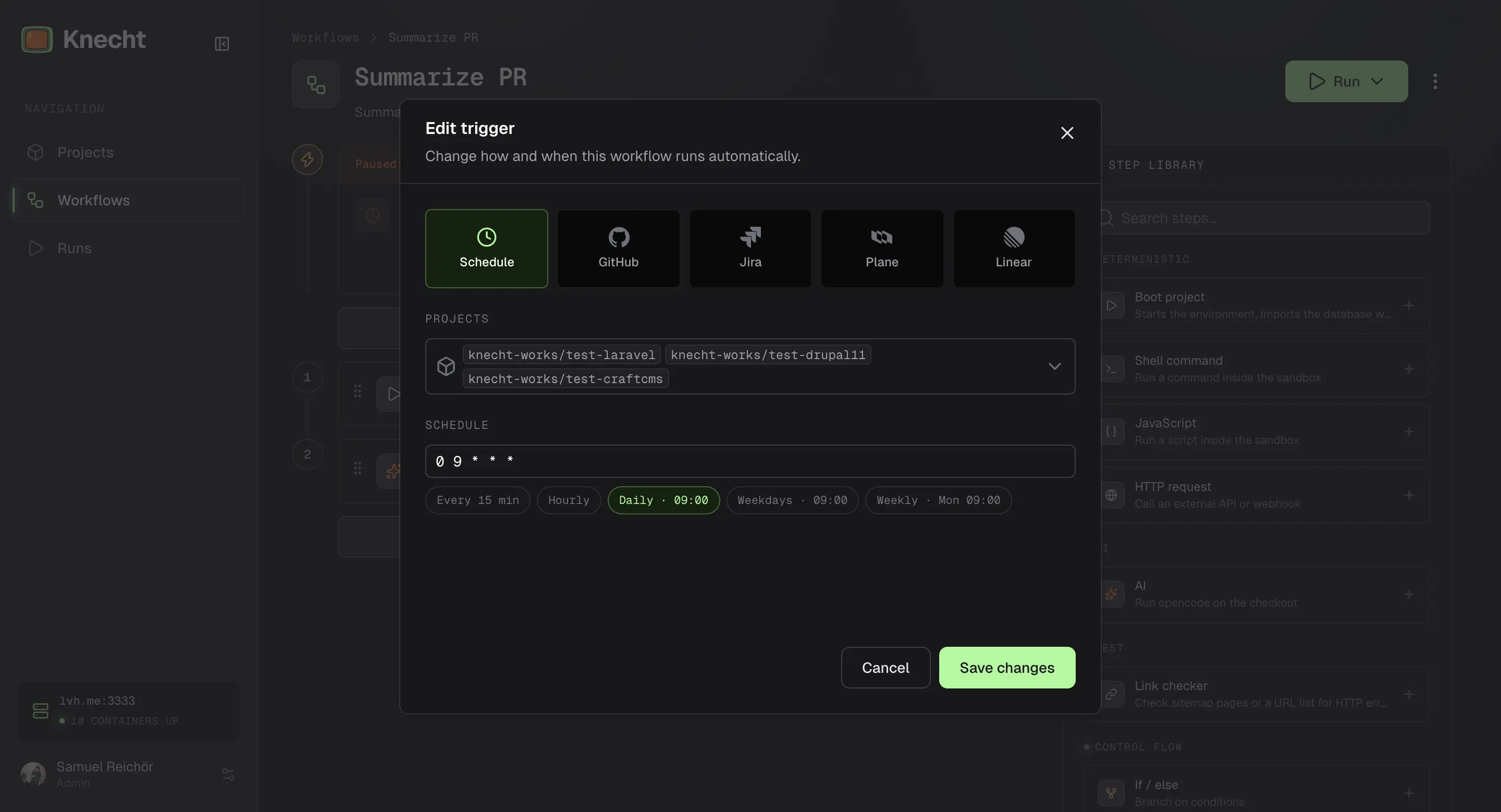
Times are in the server's local time. Supported are *, steps like */15, ranges like 1-5, and lists like 1,15. Seconds and aliases like @daily are not supported. crontab.guru explains the format and translates an expression into plain words. If the instance was down when a slot passed, the schedule fires once after the restart, not once per missed slot.